A Retro Airport Flight Tracker for My Desktop
When I have a flight coming up, I want one thing: a persistent, glanceable display showing exactly when I need to leave for the gate. Not buried in an app. Not hidden behind notifications. Just there, counting down.
So I built a desktop flight tracker widget inspired by the iconic Solari split-flap displays you see in old train stations and airports.
The Aesthetic
The design pays homage to those beautiful electromechanical departure boards:
- Dark background with subtle panel layering, like the housing of a real display unit
- Amber/yellow text for flight info, mimicking the warm glow of flip digits
- Green highlights for on-time status and countdown—the color that means “you’re fine”
- Color-coded urgency: the “BOARDS IN” countdown shifts from green → yellow → orange → red as boarding approaches
- Menlo monospace font throughout, because airport displays don’t do proportional fonts
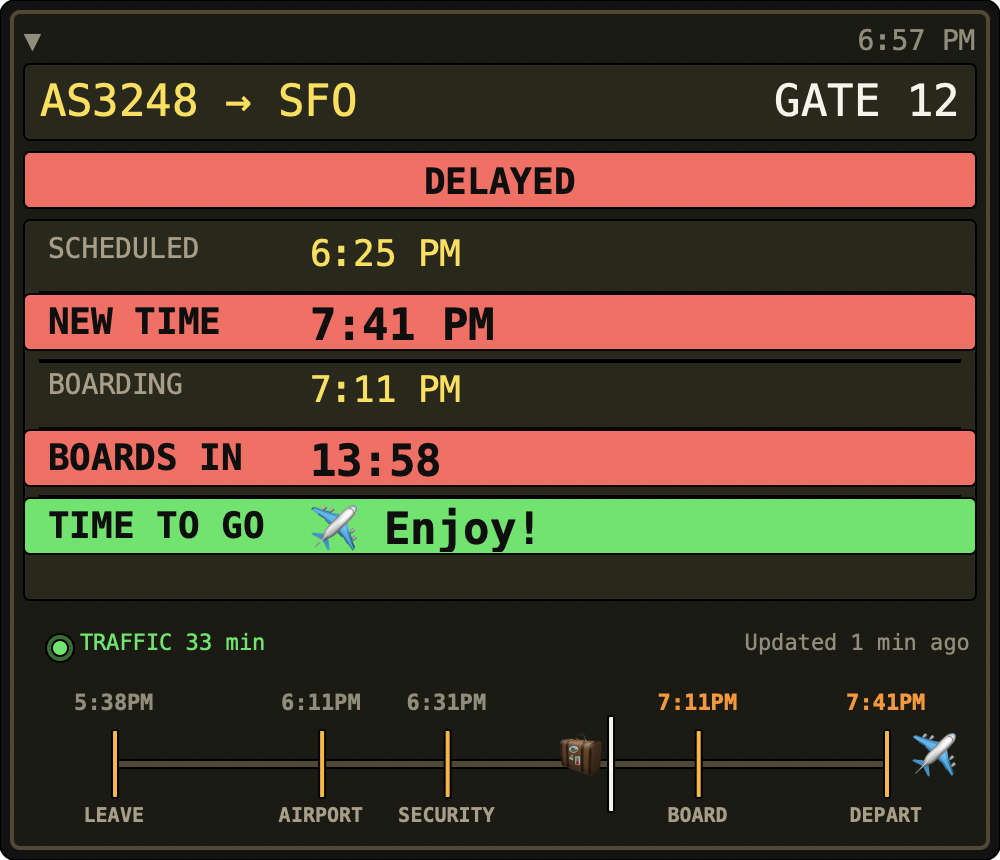
The status bar changes too. “ON TIME” glows green. “DELAYED” gets a red background you can’t miss.
What It Shows
- Flight and destination: AS3248 → SFO
- Gate number: Updated as the airline assigns/changes it
- Status: On Time, Delayed, Boarding, etc.
- Scheduled departure: The original time
- New time: Actual estimated departure (green when on-time, shifts to red when delayed)
- Boarding time: When they’ll start calling groups
- BOARDS IN: Seconds-accurate countdown to boarding, with smooth color transitions
- TIME TO GO: When you need to leave your house
The TIME TO GO row is my favorite addition. It takes the boarding time and subtracts my travel buffer (30 minutes driving + 60 minutes airport buffer = 90 minutes). When that countdown hits zero, I need to be out the door. No mental math required.
Journey Timeline
At the bottom of the widget, a visual timeline tells the whole story:
5:38PM      6:11PM      6:31PM        7:11PM      7:41PM
  |           |           |             |           |
LEAVE     AIRPORT     SECURITY       BOARD       DEPART
The times are calculated proportionally based on my travel assumptions—when to leave home, when I’ll arrive at the airport, clear security, start boarding, and final departure. A little suitcase 🧳 emoji travels along the timeline as the journey progresses. Once I’m past security, it waits patiently for boarding.
Traffic-Aware (When Enabled)
The widget has a submarine-style indicator light showing traffic status:
- Green glow: Google Maps traffic integration is enabled
- Red glow: Running without traffic data
When enabled, it queries the Google Maps Directions API for real-time travel estimates from my home to the airport. The “TRAFFIC 33 min” label shows the current estimated drive time. This lets the TIME TO GO calculation adapt to actual traffic conditions rather than my static 30-minute assumption.
Location Awareness
Here’s a subtle touch: the widget detects when I’m at the airport.
Using macOS location services, it checks if I’m within ~2.5km of John Wayne Airport. When it detects I’ve arrived, the TIME TO GO row transforms:
Before arriving: TIME TO GO: 45:32 (countdown to leave)
At the airport: TIME TO GO: ✈️ Enjoy! (no more countdown needed)
The background shifts to a calm green. The stressful part is over—I made it.
Collapsed Mode
Sometimes I need screen real estate. Clicking anywhere on the widget collapses it to a tiny bar at the top of the screen:

Just the essentials: flight code, destination, boarding time, and a live countdown. The color still shifts with urgency—green when you have time, red when you need to move. Click again to expand back to the full view.
This collapsed state is perfect for those last productive minutes before heading to the airport. I can see at a glance that I still have 28 minutes, without a giant widget demanding attention.
How It Works
It’s built with Hammerspoon, the Swiss Army knife for macOS automation. The widget:
- Calls a Go CLI tool that scrapes flight data from the airline
- Parses the JSON response
- Renders everything using Hammerspoon’s canvas API
- Updates the countdown every second
- Refreshes the flight data every 10 minutes
The whole thing collapses to a tiny bar when I click the arrow—just flight code and countdown—then expands again when I need details.
The Details That Matter
A few touches that make it actually useful:
- Persists across spaces: The widget follows me to every desktop
- Smart color gradients: The urgency color doesn’t jump—it smoothly transitions as time decreases
- “Updated X min ago”: So I know if I’m looking at stale data
- Error states: Clear feedback when the fetch fails, not silent failures
When you’re trying to time your departure to the airport, every minute of visibility helps. This widget lives in the corner of my screen, quietly counting down, changing color as boarding approaches. No checking my phone. No opening apps. Just a glance.
The retro aesthetic is a bonus. Function drove the design, but there’s something satisfying about bringing back the Solari vibe in pixels.